Connecting to HPC (submit.hpc.fsu.edu) from MS Windows via SSH/xwin32
-->
Connecting to HPC (submit.hpc.fsu.edu) from MS Windows via SSH/xwin32
| Main | Labs | Hardware | Software | Help |
You will need to have xwin32 and SSH installed and working on your
computer. Please see the following links for information regarding the acquisition
and installation of these programs. These programs are (all ready)
installed on the PC's in the Conradi and Unit I computer labs.
Installing and using SSH
Installing and using x-win32
Initial setup
-
Create a profile in SSH for HPC. Start
SSH and select Profiles->Add Profile from the SSH GUI. Type
in "HPC-CSIT" in the Profile Name box and click the "Add
to Profiles" button.
-
Select Profiles->Edit Profiles from the SSH
GUI. If HPC-CSIT is not all ready selected, select it by clicking
it once. The "Connection" tab should be active, if not make
it active by clicking it.
-
Fill in "Host name" with "submit.hpc.fsu.edu".
Fill in "User name" with your HPC user name.
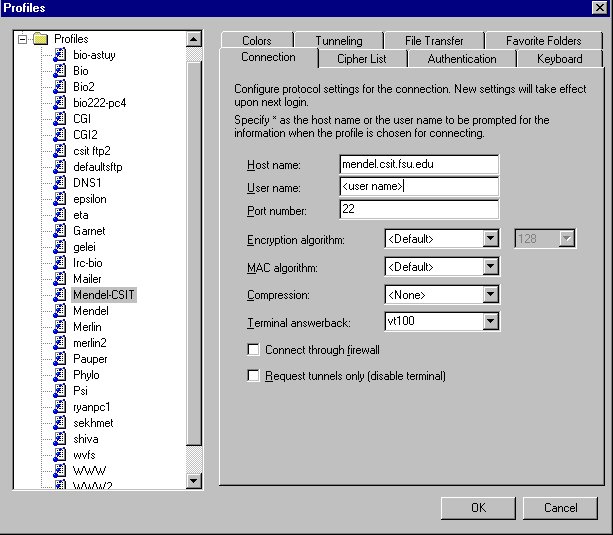
-
Click the "Tunneling" tab. Put a
check in the "Tunnel X11 connections" box.
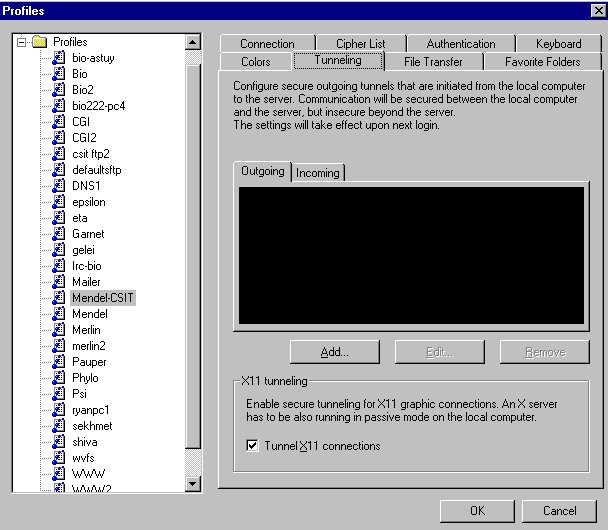
-
Click OK.
Connecting
-
Start X-win32. A minimized X-Win32
application should now be running in your task bar.
-
Start SSH and select Profiles->HPC-CSIT
from the SSH menu. Enter your HPC password when asked. You
should see the Wisconsin Package setup screen and then get a Unix prompt.
-
At the Unix prompt type "seqlab
&". The seqlab GUI should appear.
-
To disconnect, exit seqlab, then type
"exit" at the Unix prompt or close the SSH window.
Transferring Files
-
Start SSH and select Profiles->HPC-CSIT
from the SSH menu. Enter your HPC password when asked. You
should see the Wisconsin Package setup screen and then get a Unix prompt.
-
Choose Window->New File Transfer
from the SSH menu. A SSH Secure File Transfer window appears.
-
Uploading: Drag the file from
your computer to the right side panel of the Secure File Transfer
window.
-
Downloading: In the right side
panel of the Secure File Transfer window right click on the file
or folder you wish to download. Choose Download Dialog
from the context menu.