Support Facilities - Computer Facilities - Hardware - CD Burner for PC
-->
CD BURNER FOR PC
| Main | Labs | Hardware | Software | Help |
Using the CD Burner for PC
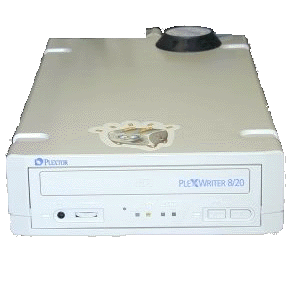
The CD burner shown above may not be exactly like the one
you see in the lab.
Using the Plextor 12/4/32 CDR w/ Adaptec EasyCD Creator
4.02d software.
The Easy CD Creator interface consists of four
windows. The top two windows
are the source windows. This is
where you will find the files you wish to burn to CD.
The bottom two windows are the destination windows.
Files and folders to be burned to CD are dropped into these windows.
The left windows are for showing folders and directory trees. Files and folders to be burned should be dragged to the
bottom right window.
- Insert blank disk into the Plextor CDR.
- From Start->Applications choose CD Creator. It will take
a while to start, be patient.
- Choose File>New CD Layout>Data CD.
- In the top left window use the explorer type folder/directory interface to find your
files and or folders.
- To burn entire folders drag either entire folder from the top left window to the bottom
right window.
- To burn individual files click the folder in the top left window. It’s contents are
displayed in the top right window. Drag the files you wish to burn from the top right
window to the bottom right window.
- Choose File->CD Layout Properties. Change the Volume label if you wish.
It’s picky about names, 12 characters or less, no spaces or underscores, dashes are
acceptable.
- In the File System option, use Joliet file system for Windows compatible
CD’s. Use ISO9660 only if you are trying to burn for use with older CD systems,
including older Macs. Other settings that should be checked are Preserve normal file
ordering, Single data track only and Automatically import
previous session. Click Ok.
- Choose File->Create CD. Click the Advanced
button. Choose Close
Disk if you are filling up the disk or if you are using it with an older CD drive
that cannot read multi session disks. Most CD drives manufactured in the last 4 years can
read multi session CDs. Else choose Close session and leave disc open.
- Change the radio button setting from Test and create
CD to Create CD. Click Ok.
When CD Creator reports "CD created succesfully" remove CD from
open CD drive. Test CD by inserting into regular CD drive.